
Admin Users
The Admin Users section lets you manage the accounts that can log in to the admin panel.
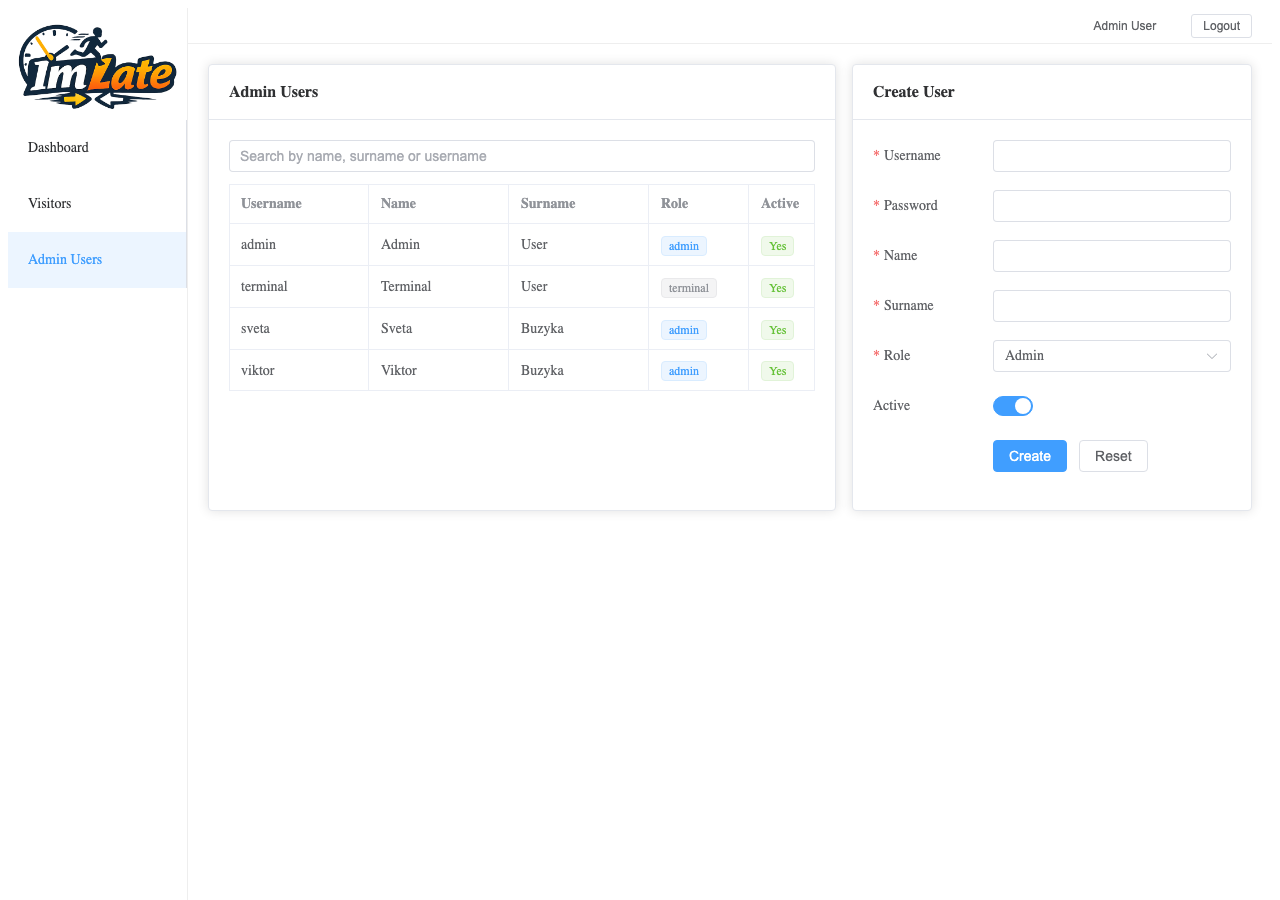
User List
The table shows all admin and terminal users:
| Column | Description |
|---|---|
| Username | Login name |
| Name | First name |
| Surname | Last name |
| Role | admin or terminal |
| Active | Whether the account is enabled |
| Created | Account creation date |
| Updated | Last update date |
Searching
Filter the user list by name, surname, or username using the search fields.
Creating an Admin User
1
Open the creation form on the right side of the page.
2
Fill in the fields:
- Username — unique login name
- Password — minimum 6 characters
- Name — first name
- Surname — last name
- Role — choose
admin(full access) orterminal(limited access) - Active — toggle on to enable the account immediately
3
Click "Save". The new user can now log in with their credentials.
Editing a User
Click a user row in the table to load their details into the form. You can change the name, surname, role, and active status. Click Save to apply changes.
INFO
The username cannot be changed after creation. If you need a different username, create a new user and deactivate the old one.
Changing a Password
- Select a user from the table.
- Click the Change Password button.
- Enter the new password (minimum 6 characters).
- Click Save.
Roles
| Role | Description |
|---|---|
| Admin | Full access to all admin panel features |
| Terminal | Limited role intended for sign-in terminal operation |
Deactivating a User
Instead of deleting a user, you can deactivate their account:
- Select the user.
- Toggle the Active switch to off.
- Click Save.
The user will no longer be able to log in, but their record remains in the system.
Deleting a User
- Select the user from the table.
- Click the Delete button.
- Confirm the deletion.
WARNING
You cannot delete your own account. If you need to remove your account, ask another administrator.